EseeCloud Login — App, PC & Account Access Guide
Quick answer: EseeCloud does not have a standalone web login portal. You cannot sign in at a website URL. All access happens through two official clients: the EseeCloud mobile app (Android/iOS) and the EseeCloud CMS desktop software (Windows/Mac). This guide covers every login method for both.
Does EseeCloud Have a Web Login?
Many users search for "EseeCloud web login" or "EseeCloud online login" expecting a browser-based portal. There is no such portal. EseeCloud is a P2P camera management app — your cameras stream directly to your device over a secure connection, and a web interface is not part of the product.
Your options are:
| Platform | Client | Where to get it |
|---|---|---|
| Android | EseeCloud app | Google Play |
| iPhone / iPad | EseeCloud app | App Store |
| Windows PC | EseeCloud CMS | Download page |
| Mac | EseeCloud CMS (Mac) | Download page |
How to Log In on the EseeCloud App (Android & iOS)
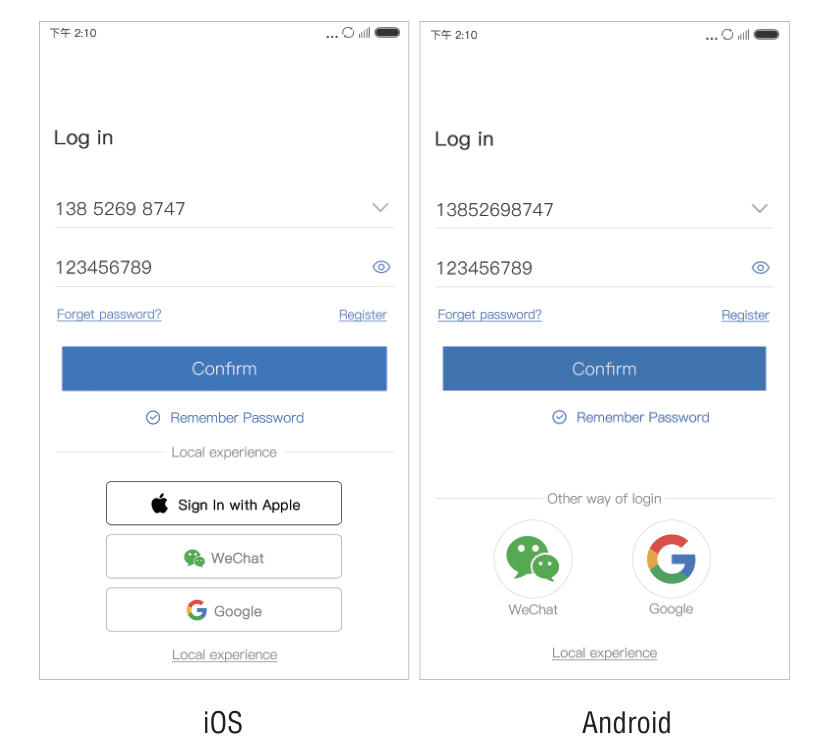
EseeCloud supports three login modes. Open the app and you will see them on the login screen.
Method 1: Account Login
This is the standard login for registered users.
- Open the EseeCloud app.
- On the login screen, enter your username, phone number, or email address.
- Enter your password.
- Tap Confirm to sign in.
You can enable Remember Password so the app pre-fills your credentials next time. The app can store multiple recently used accounts, making it easy to switch between them.
Method 2: Third-Party Login
EseeCloud supports signing in with third-party social accounts (such as Google). On the login screen, tap the icon of your preferred social platform and follow the on-screen authorization steps. No separate password is required.
Method 3: Local Experience (No Account Needed)
If you just want to try the app or prefer not to create an account, tap Local Experience. You can add cameras and use most features without registering.
Important: In Local Experience mode, all data (device list, settings) is stored only on your phone. If you uninstall the app or lose your phone, the data cannot be recovered. For long-term use, a registered account is strongly recommended.
Sponsored by MagicCreator
Create Viral AI Videos with MagicCreator
Turn your photos into fun, shareable videos with these AI effects.
How to Register an EseeCloud Account
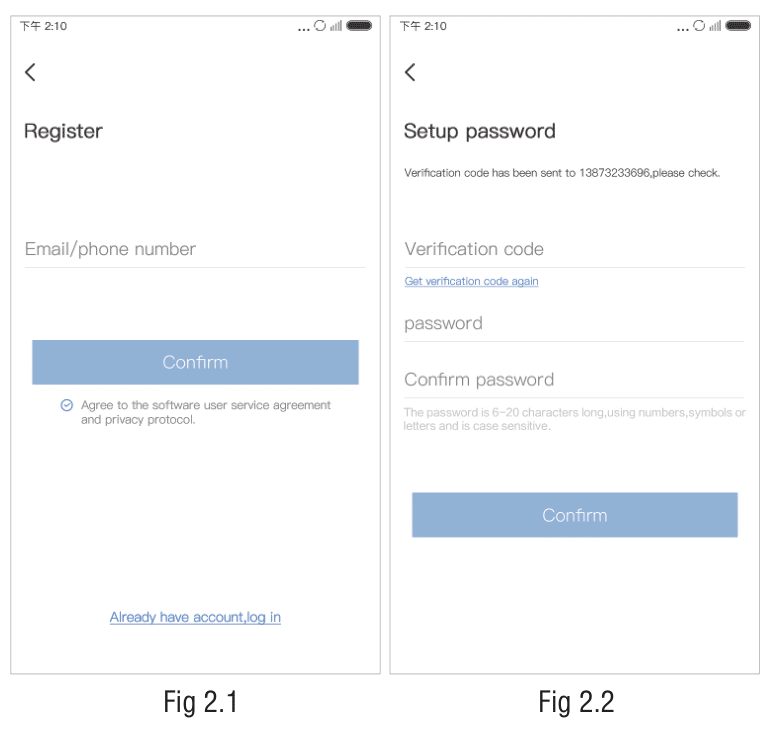
- On the login screen, tap Register (or Sign Up).
- Enter your phone number or email address.
- Tap Get Verification Code — a code will be sent to your phone or inbox.
- Enter the verification code and choose a password.
- Tap Confirm. Registration is complete and you are automatically taken to your device list.
Tip: Use a valid email address during registration. It is required for password recovery. An account registered on the mobile app can also be used to log in to the CMS desktop software — you do not need to create a separate account.
How to Reset Your EseeCloud Password (App)
If you forgot your password:
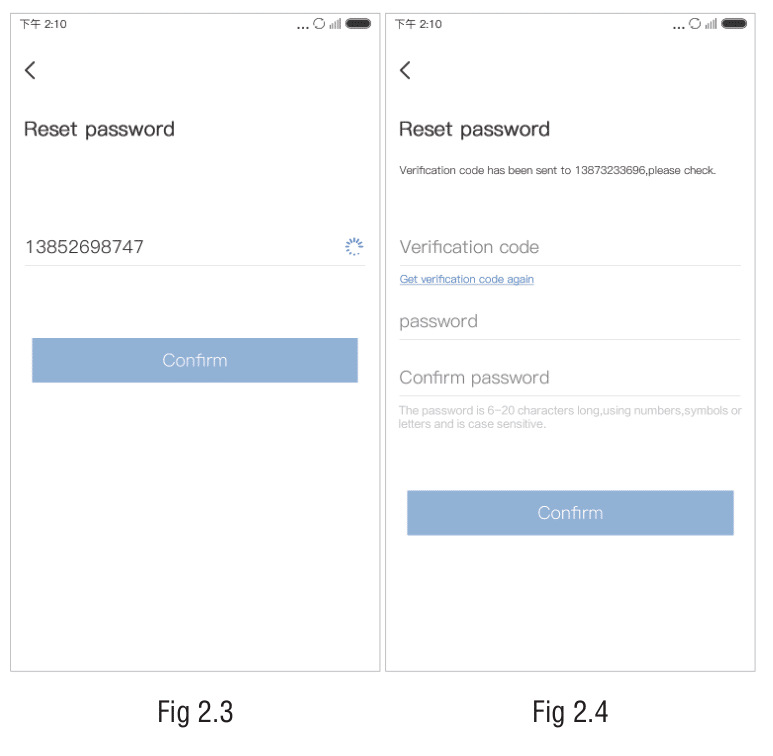
- On the login screen, tap Forgot Password.
- Enter your registered phone number or email address.
- Tap Get Verification Code and wait for the code to arrive.
- Enter the verification code.
- Type your new password and tap Confirm.
- Return to the login screen and sign in with your new password.
How to Log In to EseeCloud CMS (Windows & Mac)
EseeCloud CMS is the desktop client for PC users. It offers two login modes: Local Login and Cloud Login.
Not yet installed? Download EseeCloud CMS first and follow the Windows setup guide if needed.
CMS Local Login
Local Login connects CMS to cameras on your local network without an internet account.
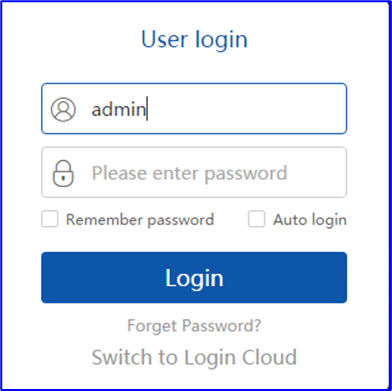
- Open EseeCloud CMS.
- Select Local Login on the login screen.
- Enter the username — the default is
admin. - The initial password is blank — leave the password field empty for first-time login.
- Click Login.
Security note: Change the default blank password immediately after your first login. Leave it blank and anyone on your network could access your camera feeds. Go to System Info → Change Password to set a strong password.
CMS Local Login features:
- Remember password and auto-login are supported (unless auto-lock is enabled).
- The account box shows the three most recently used accounts.
- Clicking "Forgot Password" on the local login screen generates an encrypted string — contact support with this string to recover access.
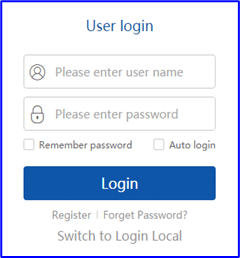
CMS Cloud Login
Cloud Login connects CMS to your EseeCloud account and allows remote camera access over the internet.
- Open EseeCloud CMS.
- Select Cloud Login.
- Enter your EseeCloud account (phone/email) and password — the same credentials as your mobile app.
- Optionally enable Remember Password or Auto Login.
- Click Login.
Registering an Account in CMS
If you have not registered yet, you can also sign up from within CMS:
- On the Cloud Login screen, click Register Now.
- Enter a new account name, password, and email address.
- Click Register.
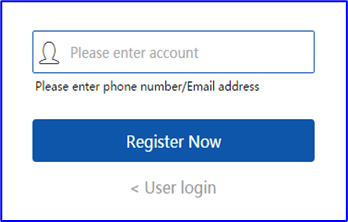
Important: After registering, log in to the email you provided and click the activation link. The activation link expires after 2 days. If your email is not activated and you forget your CMS password, you will not be able to recover the account.
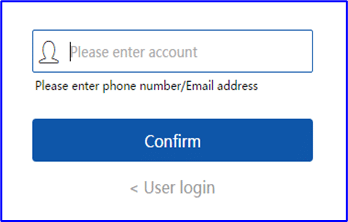
Resetting Your Password in CMS
- On the Cloud Login screen, click Retrieve Password.
- Enter your account name and registered email address.
- Click Get Verification Code — a code is sent to your email.
- Enter the code and set a new password.
- Click Complete.
EseeCloud Default Password Explained
Users often search for "EseeCloud default password" when setting up a new camera or logging into CMS for the first time. Here is what each default password refers to:
| Context | Default value | When to use |
|---|---|---|
| CMS Local Login (admin account) | (blank — no password) | First-time CMS login on Windows/Mac |
| Camera device password | Set during first-time camera setup in the app | Required when adding a camera by ID |
| Camera hotspot (IPC hotspot) | 11111111 (eight ones) | Used when adding a non-networked camera via hotspot |
Always change defaults. The blank CMS admin password and the 11111111 hotspot password are publicly known. Set unique passwords during your initial setup.
Logging In on Multiple Devices
EseeCloud allows the same account to be signed in on multiple devices simultaneously — for example, your phone and your spouse's phone. There is no enforced single-device restriction. All devices with the same account will see the same camera list and receive the same notifications.
For shared household use, the recommended approach is to share cameras to a second account (using the in-app share feature) rather than sharing your main account credentials. This gives you control over what the shared user can see and do. See the Camera Sharing Guide for step-by-step instructions.
Common Login Problems and Fixes
"Incorrect password" error
- Double-check that Caps Lock is off.
- If you registered with a phone number, try entering the phone number as the username (not an email, and vice versa).
- Use Forgot Password to reset if you are unsure.
Verification code not arriving
- Check your spam/junk folder if you used an email address.
- Make sure you entered the correct phone number or email — no typos.
- Wait up to 2 minutes before requesting a new code.
- Ensure your phone has a signal or your internet connection is active.
"Account not activated" error (CMS)
- Log in to the email address you used during CMS registration and click the activation link.
- If the link has expired (after 2 days), try re-registering with the same email or contact support at [email protected].
App won't open or crashes on launch
- Force-close the app and reopen it.
- Check for an app update in the App Store or Google Play.
- Restart your phone.
- For persistent issues, see the Troubleshooting Guide.
CMS shows "Cannot load plugin" after login
- This usually means the installation path contains Chinese characters. Reinstall CMS to a path using only English letters and numbers (e.g.,
C:\EseeCloud).
Account Security Tips
- Change the CMS default blank password immediately after first login.
- Use a strong password — at least 8 characters, mixing uppercase, lowercase, numbers, and symbols.
- Use a valid email during registration so you can always recover your account.
- Enable app notifications to stay informed if someone accesses your cameras unexpectedly.
- Do not share your account password — use the in-app camera sharing feature instead.
Next Steps
Now that you are logged in, here are the most common next steps:
- Set up your first camera → — Step-by-step guide for adding a camera to the app.
- Download EseeCloud for PC → — Get the Windows or Mac CMS client.
- Windows CMS Setup Guide → — Full installation and setup tutorial for Windows.
- Fix connection problems → — Camera offline, black screen, or notification issues.